In today’s digital age, understanding technology becomes more essential than ever. If you’re an iPad user, knowing how to screenshot on iPad can significantly enhance your productivity and ease of communication. Screenshots allow you to capture and share anything from memorable chat moments to intricate app displays. Let’s dive into the various methods to master this simple yet powerful feature on your iPad.
How to Screenshot on iPad
Capturing a screenshot on your iPad can be accomplished in several straightforward ways, depending on the model and software version. The methods are designed to be intuitive, ensuring you can quickly take a screenshot without interrupting your workflow.
Using Physical Buttons
For most iPads equipped with a Home button, the process starts by pressing and holding the Top (or Side) button and the Home button simultaneously. Your iPad will briefly flash, accompanied by a shutter sound, indicating a screenshot has been captured.
For iPad models without a Home button, the method slightly varies. Press and hold the Top button and either volume button at the same time. This combination will promptly take a screenshot. Once captured, screenshots are automatically saved to your Photos app, allowing easy editing or sharing.
Using AssistiveTouch
AssistiveTouch is a helpful feature for those who prefer not to use physical buttons or have a difficulty doing so. To enable it, navigate to Settings > Accessibility > Touch > AssistiveTouch. Once activated, a floating menu will appear on your screen. To take a screenshot, open the menu, tap “Device,” then “More,” and finally “Screenshot.” This method provides a touch-based alternative, ensuring accessibility for all users.
Utilizing Apple Pencil on iPad Pro
If you’re an iPad Pro user with an Apple Pencil, taking screenshots becomes even more fluid. Simply swipe up from either bottom corner with the Pencil, and a screenshot will be captured. This feature is part of Apple’s continuous effort to integrate their devices seamlessly, offering creative individuals additional ways to interact with technology.
Using Siri
Siri, Apple’s intelligent voice assistant, can also assist in taking screenshots. Activate Siri by holding the Top button or saying “Hey Siri,” followed by “Take a screenshot.” This hands-free approach adds another layer of convenience, especially when coupled with voice-activated smart features.
For additional information about preserving your vision while engaging with screens frequently, consider reading our insights on eye health and the necessity of eye dilation.
Editing and Sharing Screenshots
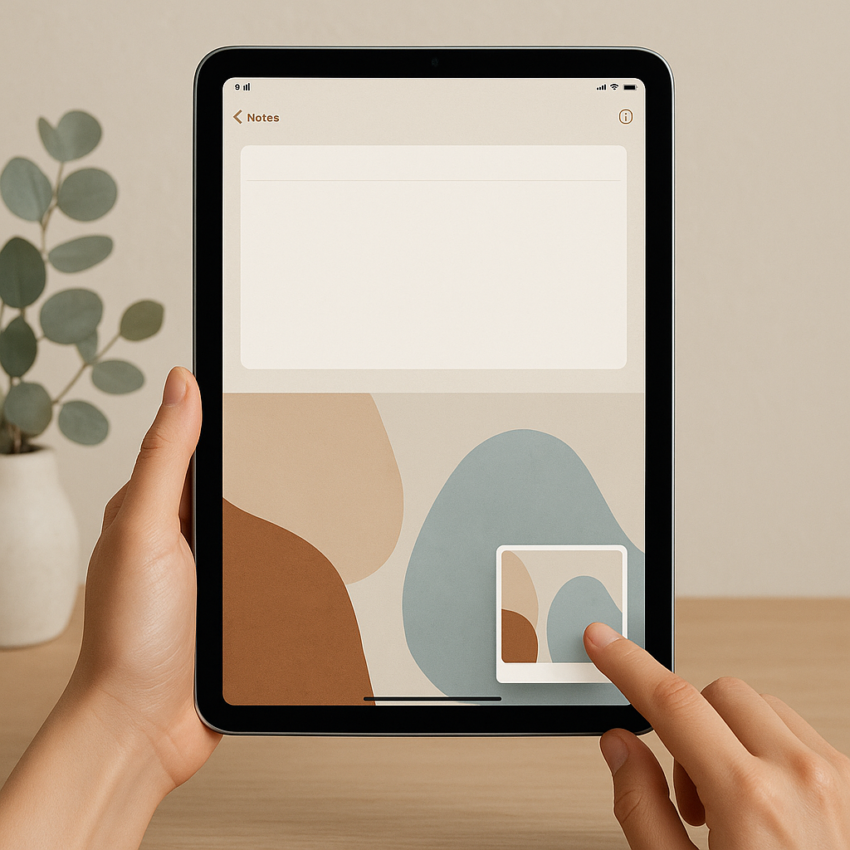
Once you’ve mastered how to screenshot on iPad, knowing how to edit and share them is equally important. After capturing a screenshot, a thumbnail temporarily appears in the lower left corner of your screen. Tapping it allows you to access editing tools where you can crop, highlight, or add text before saving the final version.
Sharing your screenshots is seamless with iPadOS. Directly from the editing interface, you can send your images via email, text, or upload them to your preferred cloud service. Apple’s ecosystem ensures that these processes are integrated smoothly with your other Apple devices.
Troubleshooting Common Screenshot Issues
Despite its simplicity, users may encounter occasional hiccups. If screenshots fail to capture, ensure your iPad has adequate storage. Occasionally, restarting the device can resolve any minor glitches. Additionally, verify that your iPadOS is updated to the latest version to ensure compatibility with new features.
For more detailed explanations about iPad features and updates, you can visit Wikipedia’s iPad page, a comprehensive resource.
Conclusion
Now that you’re familiar with the various ways to screenshot on an iPad, capturing and sharing your screen should be part of your technology toolkit. Whether using physical buttons, AssistiveTouch, or an Apple Pencil, each method offers a unique way to access this feature. Mastering this capability can enhance how you interact with your device, making your digital life more efficient.
- iPads offer multiple methods for taking screenshots.
- Options include physical buttons, AssistiveTouch, and Apple Pencil.
- Editing and sharing screenshots can be done instantly.
- Ensure your iPad is updated to avoid screenshot issues.
- Use Siri for hands-free screenshotting on supported devices.
FAQs
How do I enable AssistiveTouch for screenshots?
Enable AssistiveTouch by going to Settings > Accessibility > Touch > AssistiveTouch and toggle it on. You can then use the AssistiveTouch menu to take a screenshot.
Can I take a screenshot with Siri?
Yes, you can. Activate Siri by saying “Hey Siri” or holding the Top button, then ask Siri to “Take a screenshot.”
How do I edit a screenshot on my iPad?
Tap the temporary thumbnail that appears after you take a screenshot to access editing tools, allowing you to crop, annotate, or add text before saving.
Why won’t my screenshot save?
This issue can occur if your iPad is low on storage or needs a restart. Verify your storage settings and ensure your software is up to date.
Is there a shortcut for taking screenshots with Apple Pencil?
Yes, on the iPad Pro, swipe up from either bottom corner with the Apple Pencil to take a screenshot quickly.