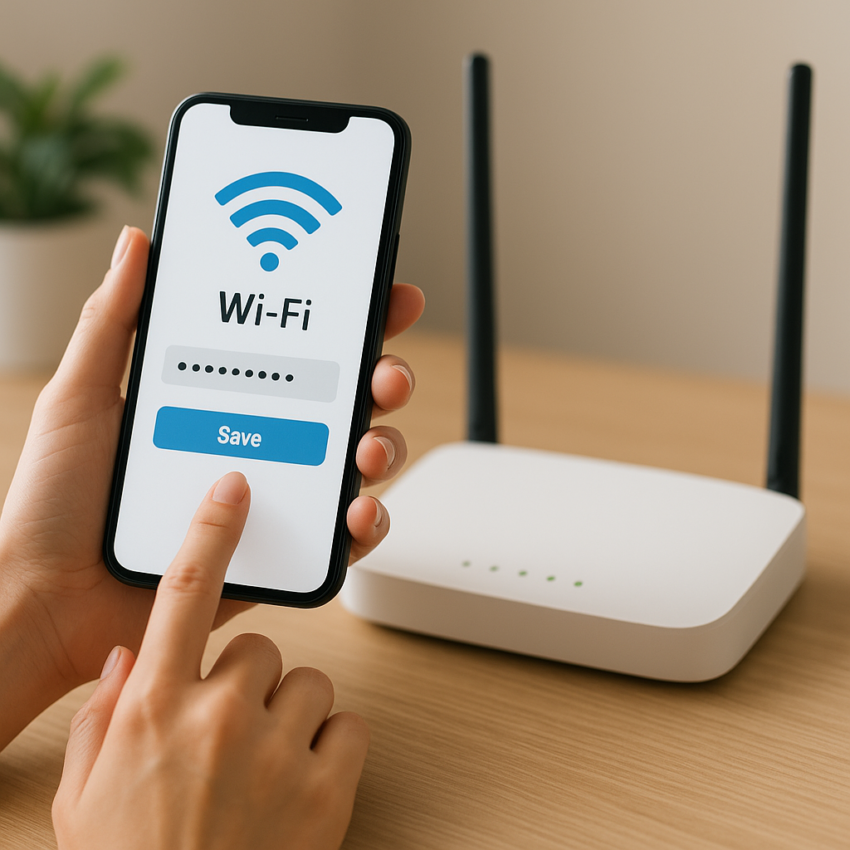
In today’s digital age, maintaining the security of your network is crucial. One of the simplest and most effective ways to do this is by learning how to change your WiFi password. Whether you’ve experienced unauthorized access or simply wish to enhance your security, changing your WiFi password is a straightforward process that can prevent unwanted users from accessing your network. This article will guide you through the steps to change your WiFi password and provide tips to keep your network secure.
How to Change Your WiFi Password
Changing your WiFi password is an essential step in safeguarding your digital environment. Here’s a comprehensive guide to help you through the process.
Access Your Router’s Settings
To change your WiFi password, you’ll first need to access your router’s settings. You can usually do this by typing the router’s IP address into your web browser. Common IP addresses for routers include 192.168.1.1 or 192.168.0.1. If you’re unsure of your router’s IP address, consult your router’s manual or look for a label on the device itself.
Log into the Router
Once you’ve accessed your router’s settings page, you’ll need to log in using your router’s username and password. This information is typically located in the router’s manual or on a label attached to the router. If you’ve never changed these login credentials, they might still be the default settings provided by the manufacturer.
Navigating to the WiFi Settings
After logging in, navigate to the section labeled “WiFi Settings” or “Wireless Security.” This section might have different names depending on your router’s brand, such as “Wireless” or “Wireless Setup.” Here is where you can manage and change your WiFi password.
Changing the Password
Focus on the field labeled “WiFi Password” or “Passphrase.” It’s advisable to choose a strong and secure password containing a combination of letters, numbers, and symbols. Make sure it’s something you can remember but hard for others to guess. After entering your new password, save the settings to apply the changes.
Reconnect Your Devices
Once your password is changed, your WiFi network will disconnect all previously connected devices. You will need to reconnect each device using the new password. This is an excellent opportunity to assess which devices you want to connect to your network and maintain control over who gains access.
Tips for Creating a Secure WiFi Password
Creating a secure password is essential in preventing unauthorized access. Here are some tips for creating a robust password:
- Use a mix of uppercase and lowercase letters, numbers, and symbols.
- Avoid using easily guessed passwords like “password” or “123456.”
- Consider using phrases or a combination of unrelated words to create a strong passphrase.
- Change your network password regularly to maintain security.
Additional Tips to Secure Your Network
Besides changing your wifi password, consider these additional security measures:
- Enable network encryption through WPA3 or WPA2 security settings.
- Keep your router’s firmware updated to protect against vulnerabilities.
- Disable Remote Management unless necessary.
- Consider hiding your network’s SSID broadcasting.
Dealing with Forgotten Router Credentials
If you’ve forgotten your router’s login details, you may need to reset the router to its factory settings. This usually involves pressing and holding a reset button on the router for a few seconds. Be aware that this will erase all custom settings, including your network name and password, so this step should be a last resort.
Understanding the broader implications of digital security is crucial in today’s connected world. Often there’s more to learn about network security that can be applied to other devices in your home.
For more comprehensive details on WiFi technology and its development, you might want to explore this exhaustive article on Wi-Fi on Wikipedia.
In conclusion, regularly updating your network credentials and understanding how to change wifi password contributes significantly to maintaining a secure internet environment. By following the outlined steps and incorporating security best practices, you can enhance your network security and enjoy a safer online experience.
- Access your router’s settings through your web browser.
- Log in with your router’s credentials.
- Navigate to wireless settings and enter a new secure password.
- Reconnect all devices using the new password.
- Implement additional security measures for enhanced protection.
FAQ
What do I do if I can’t access my router’s settings?
If you cannot access your router’s settings, ensure you have the correct IP address and network connection. If you still face issues, resetting the router could help, but be aware that it will restore factory settings.
How often should I change my WiFi password?
It’s a good practice to change your WiFi password every few months, particularly if you have many devices or guests accessing it frequently.
Can changing my WiFi password improve internet speed?
Changing your WiFi password doesn’t directly increase speed, but it limits unauthorized access that may be bogging down your connection, thus improving performance.
Is it necessary to update the router’s firmware?
Yes, regularly updating your router’s firmware safeguards against vulnerabilities and often includes performance improvements and new features.
Could someone change my WiFi password without my knowledge?
If someone has access to your router’s login credentials, they might change your settings. Always use a strong password for both your WiFi and router admin access to avoid this.