Experiencing issues with iMessage not working can be frustrating, especially if you’re relying on it for regular communication. This widely used instant messaging service allows seamless text, photo, video, and document sharing among Apple devices. Yet, like all tech, it occasionally faces glitches. Understanding and troubleshooting these issues can quickly get you back to texting, sharing, and connecting with ease.
Common Reasons for iMessage Not Working
There are several reasons why iMessage may not work as expected. Whether it’s connectivity issues or software glitches, identifying the cause is the first step towards a solution.
Poor Internet Connection
A stable internet connection is crucial for iMessage. Whether you’re using Wi-Fi or cellular data, any disruption can affect its functionality. Check your internet connection and ensure it’s stable when experiencing issues with iMessage.
Device Settings
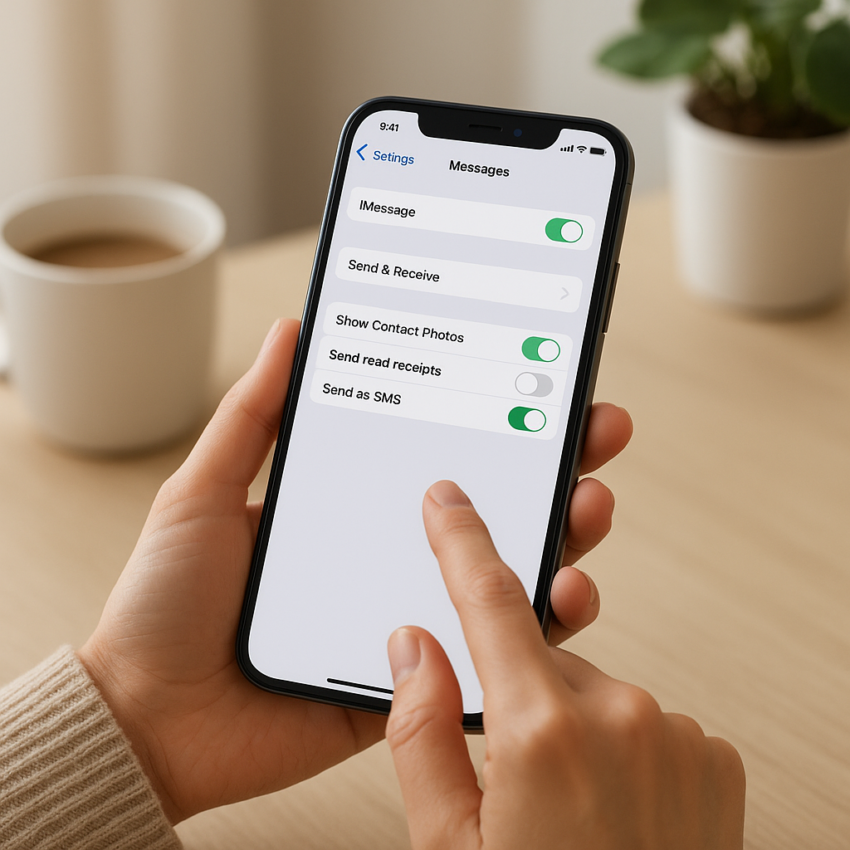
Sometimes, iMessage settings can inadvertently be altered. Verify that iMessage is enabled by going to Settings > Messages on your device. Apple’s system relies on correct settings to facilitate message syncing and delivery.
Software Updates
Running outdated software can cause compatibility issues. Keep your device’s iOS updated to the latest version to ensure smooth functioning of various applications, including iMessage.
Steps to Fix iMessage Not Working
Addressing the reasons listed above involves straightforward solutions. Follow these steps to troubleshoot iMessage not working:
Check Your Network Connection
Start by confirming that your device is connected to the internet. If using Wi-Fi, try toggling it off and on, or switch to cellular data to see if the issue resolves. Alternatively, restart your router or contact your service provider if you suspect internet issues.
Enable iMessage
Ensure iMessage is switched on in your settings. Go to Settings > Messages and toggle on the iMessage feature. Additionally, verify the contact information being used, such as phone number and Apple ID, under ‘Send & Receive.’
Restart Your Device
Often, a simple restart can resolve temporary glitches. Restart your iPhone or iPad to refresh the system and potentially solve minor software issues affecting iMessage.
Update iOS
Updating your device’s operating system can fix bugs affecting the functionality of applications. Go to Settings > General > Software Update to download and install the latest iOS version if one is available.
Sign Out and Back In
Signing out and back in to your Apple ID can also reset the functionality of iMessage. Navigate to Settings > Messages > Send & Receive, tap your Apple ID, and select Sign Out. After signing out, re-enter your Apple ID and sign back in.
Additional Troubleshooting Tips
If basic troubleshooting doesn’t seem to fix iMessage not working, consider the following approaches:
Reset Network Settings
Resetting network settings can resolve lingering connectivity issues. Go to Settings > General > Reset > Reset Network Settings. Note that this will erase stored Wi-Fi networks and passwords, so have these details prepared for re-entry.
Check Apple’s System Status
If none of the above solutions work, check the Apple System Status page to identify any service disruptions affecting iMessage functionality. Apple sometimes conducts maintenance that might temporarily affect services.
External Factors
Sometimes issues are out of our control. If after trying everything, iMessage still isn’t working, consider reaching out to Apple Support for more detailed assistance.
Explore more tips in our article about 7 Surprising Supplements for Brain Injury Recovery to enhance your knowledge on how supportive measures can benefit technology and health alike.
- Ensure a stable internet connection for iMessage.
- Keep your software updated to prevent system bugs.
- Check and enable iMessage settings on your device.
- Explore Apple’s system status for potential disruptions.
- Restart your device or reset network settings if issues persist.
FAQ
Why is my iMessage not activating?
If iMessage isn’t activating, ensure your device has a strong internet connection, and check that your date and time settings are automatically set. It may also take up to 24 hours to activate.
Can iMessage work without Wi-Fi?
Yes, iMessage can work without Wi-Fi as long as cellular data is enabled and available on your device.
Does deleting old messages help iMessage function better?
Yes, clearing out old messages can help free up storage, which may improve iMessage’s performance, particularly on devices with limited space.
Are iMessage issues specific to one device?
iMessage can experience issues across all Apple devices, though sometimes specific device settings or software versions are the culprits for problems.
How do I know if the problem is with Apple’s servers?
Check the Apple System Status page for any alerts about downtime or issues with iMessage services.
In conclusion, facing iMessage not working issues is not uncommon. By following the troubleshooting steps and considering deeper investigations into network or software settings, you can usually resolve these problems efficiently.